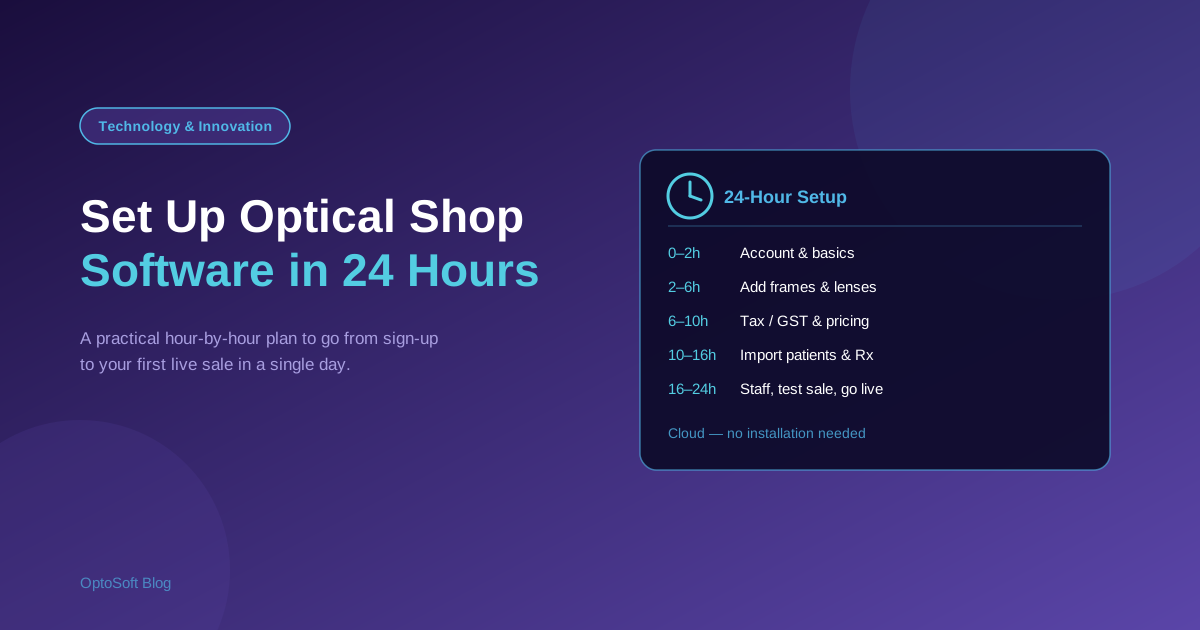
Moving to new optical software sounds like a project that eats weeks. With a cloud-based system and a bit of preparation, it does not have to. This is a practical, hour-by-hour plan to set up optical shop software and make your first live sale in a single working day.
Why setup speed matters
Cloud (browser-based) software has no installation, no server to provision and no manual updates, so the only real work is configuration and data. That is what makes a one-day go-live realistic. On-premise systems take longer because you also handle hardware, installs and backups. The plan below assumes a cloud system such as OptoSoft.
Before you start: what to have ready
Gather these first — having them on hand is what keeps setup to a day:
- Your shop details: name, address, logo, GST/tax number.
- A product list or supplier price lists (frames, lens types, coatings).
- An export of existing patients and prescriptions, if you are switching systems (CSV/Excel).
- Your staff list and who should have which access.
- Tax rates and any standard add-on pricing.
Hour 0–2: Create your account and configure the basics
Sign up, then enter your shop profile: name, address, logo, contact details and currency. Set your business hours and invoice numbering. With a cloud system you are working in the live app within minutes — no install required.
Hour 2–6: Add your products
Build your catalogue: frames (by brand, model, colour and size), lens types with indices and coatings, contact lenses, and accessories. If you have a supplier price list, import it in bulk rather than typing each item. Assign barcodes so stock updates automatically at the till.
Hour 6–10: Set up tax, pricing and payments
Configure your tax rules (for India, your GST rates and HSN codes), standard add-on pricing for coatings and tints, and your accepted payment methods. Getting pricing right now means every later invoice is correct and fast. See the India / GST setup if you bill with GST.
Hour 10–16: Import patients and prescriptions
Import your existing patient records and their prescriptions from your CSV/Excel export. This is the step that saves the most time versus re-keying, and it means day-one customers arrive with full history for easy reorders. Spot-check a handful of imported records for accuracy.
Hour 16–20: Add staff and set roles
Create logins for your team and assign role-based permissions — who can sell, who can edit pricing, who sees reports. Give everyone a quick walkthrough of the daily flow: find or add a patient, record the prescription, select frames and lenses, bill.
Hour 20–24: Run a test sale and go live
Do a full dry run: create a test patient, add a prescription, build a spectacle order, apply tax, take a part payment, and print or share the invoice. Confirm stock deducts and the bill links to the prescription. Once that works end to end, you are live — start billing real customers.
Common setup mistakes to avoid
- Skipping the data export and re-keying patients by hand (slow and error-prone).
- Leaving tax/GST until after go-live, so early invoices are wrong.
- Not assigning staff roles, so everyone can change everything.
- Going live without one full test sale.
OptoSoft is cloud-based with a free plan, so you can follow this plan today. See the full optical shop management system, the POS and inventory modules, or read how to choose optical software first.
Frequently asked questions
How long does it take to set up optical shop software?
With a cloud system and your data prepared, a working store can be set up in about a day — configure the shop and products, import patients and prescriptions, add staff, run one test sale, and go live. On-premise systems take longer because of installation and hardware.
Can I import my existing patient and prescription data?
Yes. Most optical software imports patients and prescriptions from a CSV or Excel export of your old system, which avoids re-keying and means customers arrive with full history. Always spot-check a few imported records for accuracy.
Do I need to install anything to use optical software?
Not for cloud-based software — it runs in any web browser with no installation, automatic updates and off-site backups. On-premise software does require installation on your own machines.
What do I need before setting up optical software?
Have your shop details and tax number, a product or supplier price list, an export of existing patients and prescriptions, your staff list with access levels, and your tax rates and add-on pricing ready before you start.
Ready to set up today? Start on the free plan or see the all-in-one optical system.